A laptop that has become slow, hot and loud is usually not failing. It is choked. Dust accumulates in the heatsink fins behind the fan, airflow drops, temperatures rise, and the processor reduces its own speed to stay within limits. Cleaning it is a twenty-minute job that recovers most of the performance.
Cordless air dusters versus canned air
Compressed air cans contain a liquid propellant. Tilted, or used in long bursts, they spray cold liquid onto components, and that liquid can damage plastics and cause condensation.
Cordless electric dusters use a motor and produce dry air with no propellant, which makes them better for repeated use and much better value over time. The trade-off is that they are heavier and need charging.
Whichever you use, short bursts and a moderate distance are the rule.
The fan bearing warning
This is the mistake that turns a cleaning session into a repair. Blowing air into a fan spins it far beyond its design speed, which damages the bearing and, because a spinning motor generates current, can send a voltage back into the board.
Hold the fan blades still — with a cocktail stick, a plastic pick or a finger through the vent — before blowing anything at it. It is a two-second precaution that prevents the most common self-inflicted damage.
Cleaning without opening the case
For a laptop still under warranty, or one you would rather not open, a lot can be done from outside:
- Power off completely and unplug. Remove the battery if it is removable.
- Identify the intake and exhaust vents — usually intake underneath, exhaust at the side or back.
- Hold the fan still through the exhaust vent.
- Short bursts of air into the exhaust, so dust is pushed back out of the intake rather than deeper in.
- Vacuum the loosened dust from around the machine rather than with a nozzle against the vents.
This will not clear a fully clogged heatsink, which needs the base panel off, but it does a surprising amount.
Opening the base panel
If you are comfortable doing it, removing the base gives access to the fan and the heatsink fins where the dust actually mats. Photograph everything, keep screws in order, and be aware that opening it may affect warranty terms.
The dense grey mat of dust across the heatsink fins is the thing to remove. A soft brush plus air works better than air alone.
The keyboard
Turn the laptop upside down and tap gently before anything else; a surprising amount falls out. Then use air along the rows at an angle rather than straight down, which pushes debris under adjacent keys.
Do not remove keycaps on a laptop unless you know the retaining clip design. Laptop key mechanisms are fragile and are not designed to be removed repeatedly.
For sticky residue, a barely damp lint-free cloth with a little isopropyl alcohol, wrung out until it is not wet, applied to the cloth and never to the machine.
The screen
Never use glass cleaner, alcohol at high concentration, or paper towel. Laptop screens have anti-glare and oleophobic coatings that ammonia and abrasion remove permanently, leaving a patchy matte area that cannot be repaired.
Use a dry microfibre cloth first. For marks, lightly dampen the cloth with distilled water or a purpose-made screen solution, wipe in one direction, and dry with a second cloth. A retracting brush-and-cloth tool is convenient and keeps the cloth clean between uses, which matters — a gritty cloth scratches.
Ports
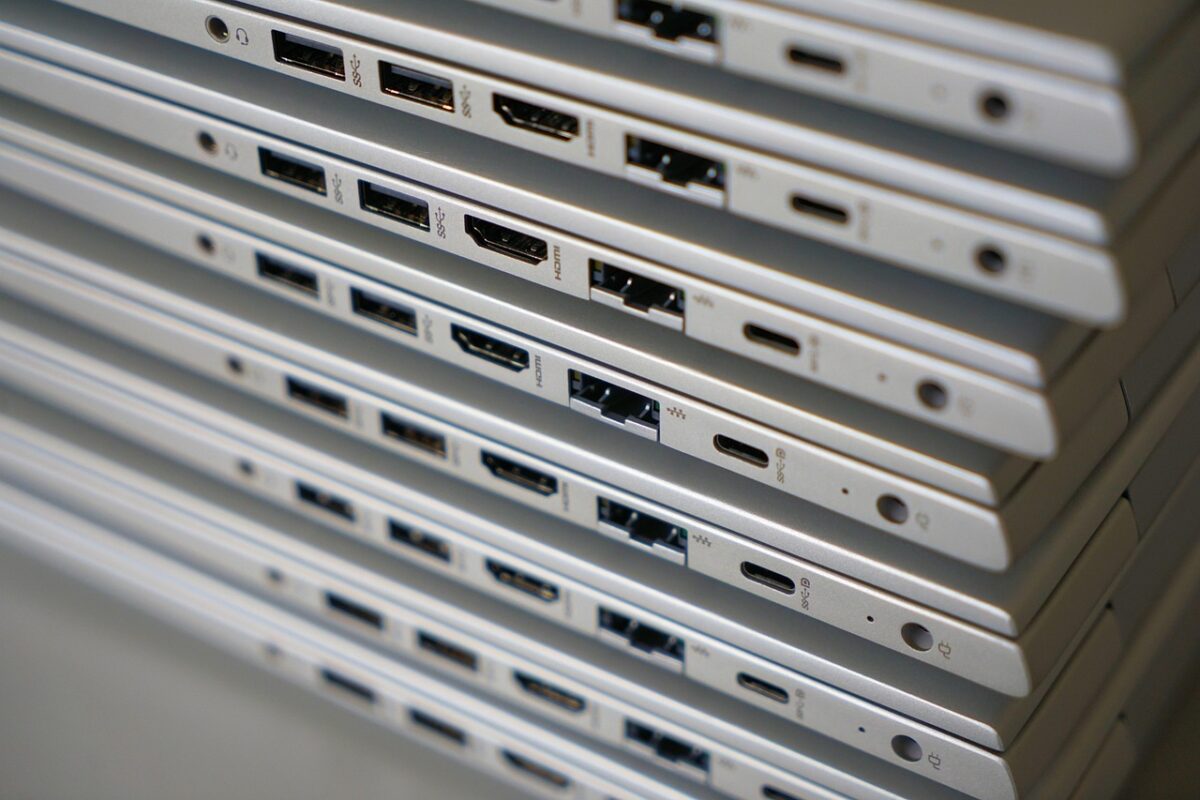
Lint compacts in USB-C and headphone ports and is a common cause of a cable that will not seat. Use a wooden or plastic pick and a torch, with the machine off. Never metal.
How often
Every six months for a machine in a normal home, more often in a dusty environment or with pets in the house. Pet hair is particularly good at matting a heatsink.
Raising the laptop on a stand improves intake airflow permanently and slows the whole problem down, which is a better fix than cleaning more often.
What cleaning will not fix
If temperatures remain high after a thorough clean, the thermal paste between the processor and the heatsink may have dried out. Replacing it is a genuine improvement and is a more involved job — worth having done rather than attempted as a first repair.
Air dusters, brushes and screen tools are in repair and cleaning, and stands that improve airflow are in laptop stands.
Recognising thermal throttling
The pattern is distinctive: the machine is fast for a few minutes, then slows and stays slow, and the fan runs constantly. That is the processor reducing its own speed to keep temperature within limits, and it is a cooling problem rather than a software one.
A free monitoring utility that shows CPU temperature confirms it in a minute. If temperature climbs quickly to a ceiling and the clock speed drops at the same moment, cleaning is the first thing to try.
Where the machine lives
Half the dust problem is location. A laptop used on a bed or a sofa draws fibres straight into the intake, and a machine kept on a carpeted floor draws in whatever is on the carpet.
Using it on a hard surface or a stand, and keeping it off the floor, slows accumulation dramatically. It is a considerably better strategy than cleaning more often, and it costs nothing.