Almost every desk we see has the screen too low. It is not a preference problem — it is what happens when a monitor stand is designed to be short enough to suit the widest range of desks, and nobody adjusts it afterwards. The result is a slight permanent downward tilt of the head, which is the posture most associated with neck and upper back discomfort at a desk.
The height rule
Sit upright, look straight ahead with your eyes relaxed, and the point you are looking at should be at or just below the top edge of the screen. In practice that puts the top bezel roughly level with your eyes, and the centre of the screen fifteen to twenty degrees below.
The eye rests naturally slightly downward, which is why the top of the screen and not the centre is the reference. Setting the centre at eye level pushes the head back and is as bad in the other direction.
Adjust the chair first
Height starts at the floor, not the desk. Set the chair so your feet are flat and your thighs are roughly parallel to the floor, then set the desk or keyboard so your forearms are level. Only then look at the monitor.
People routinely raise a chair to reach a screen and end up with their feet dangling, which moves the problem to the lower back. A footrest is a cheaper fix than a new desk if the desk cannot be lowered.
Distance
Roughly an arm’s length — around twenty to thirty inches for a typical 24-inch monitor. Larger screens want to sit further back, which is the part people miss when they upgrade: a 32-inch screen at the distance that suited a 24-inch means constant head movement to read the corners.
If text is too small at a comfortable distance, increase the operating system scaling rather than moving the screen closer.
Tilt
Tilt the screen back by about ten to twenty degrees so the surface is perpendicular to your line of sight. A screen tilted forward reflects ceiling lights straight into your eyes, which is the most common cause of a glare problem that gets blamed on the panel.
Raising a monitor without a new stand
A riser is the tidy answer, and it has a second benefit: the space underneath swallows the keyboard, a notebook and the general silt of a desk. Look for a platform deep enough for the monitor’s own base — most monitor feet are deeper than people expect — and a stated load rating above the weight of your screen.
Measure the base of the stand rather than the screen. A 27-inch monitor with a wide V-shaped foot needs a much bigger platform than the diagonal suggests.
Two monitors
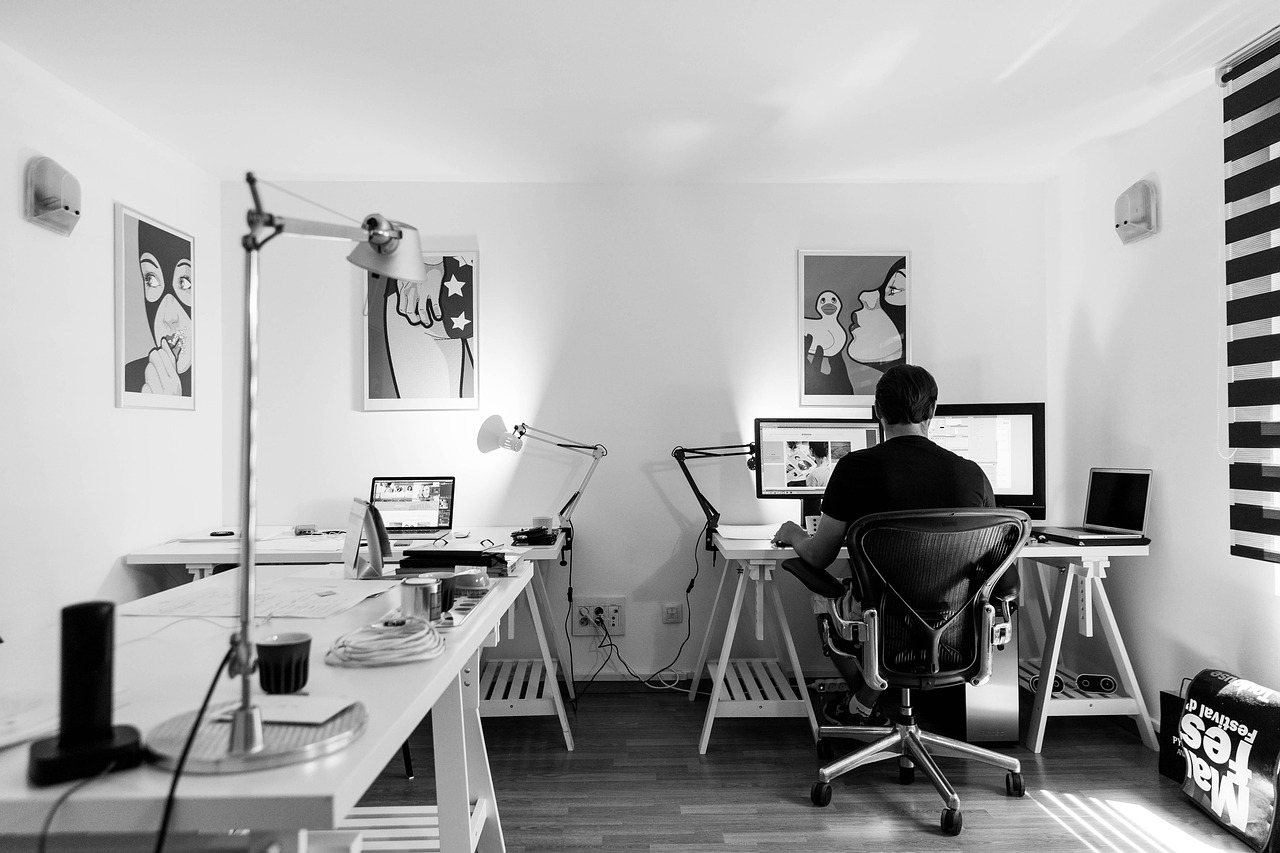
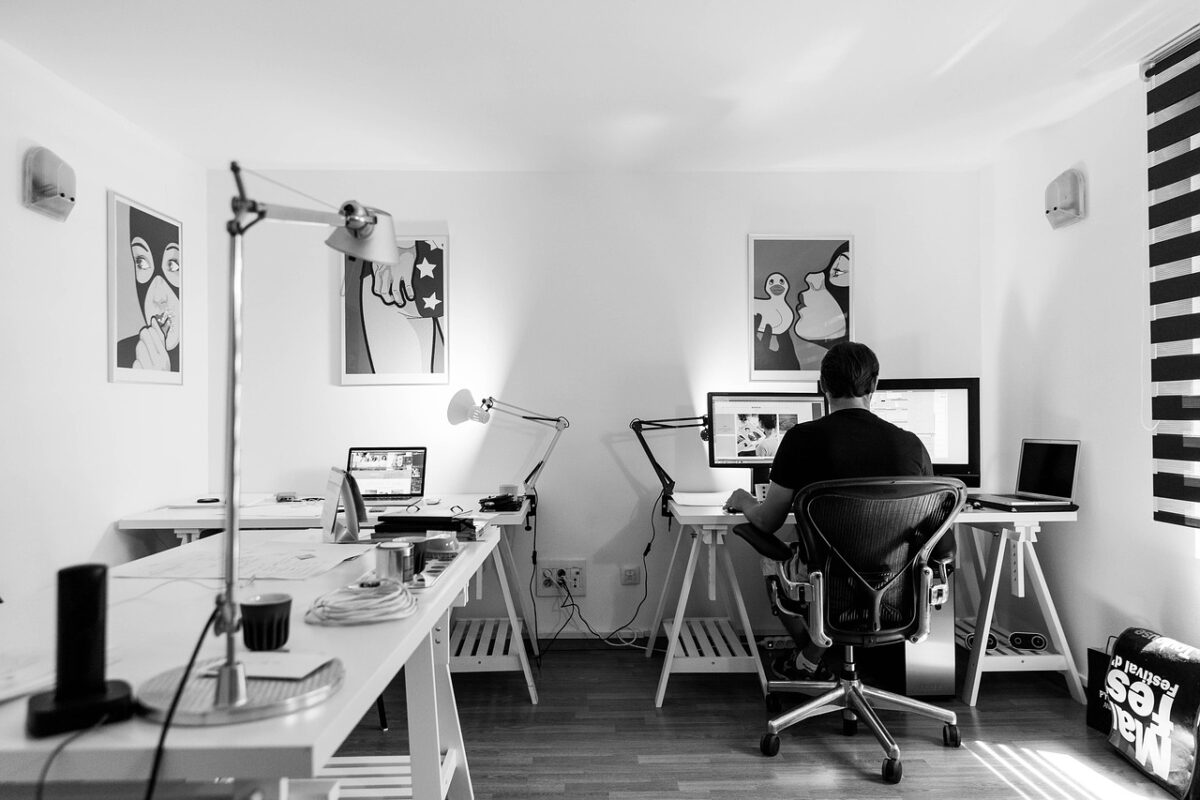
If you use both equally, place them symmetrically with the join in front of you and angle both slightly inward. If one is primary, put that one directly in front and the secondary at an angle to the side.
The common mistake is putting the join dead centre when one screen does eighty per cent of the work, which means the main screen is off to one side all day. Match the layout to the actual usage.
Set both to the same height. A step between two screens produces a small head movement thousands of times a day.
Laptops are a special case
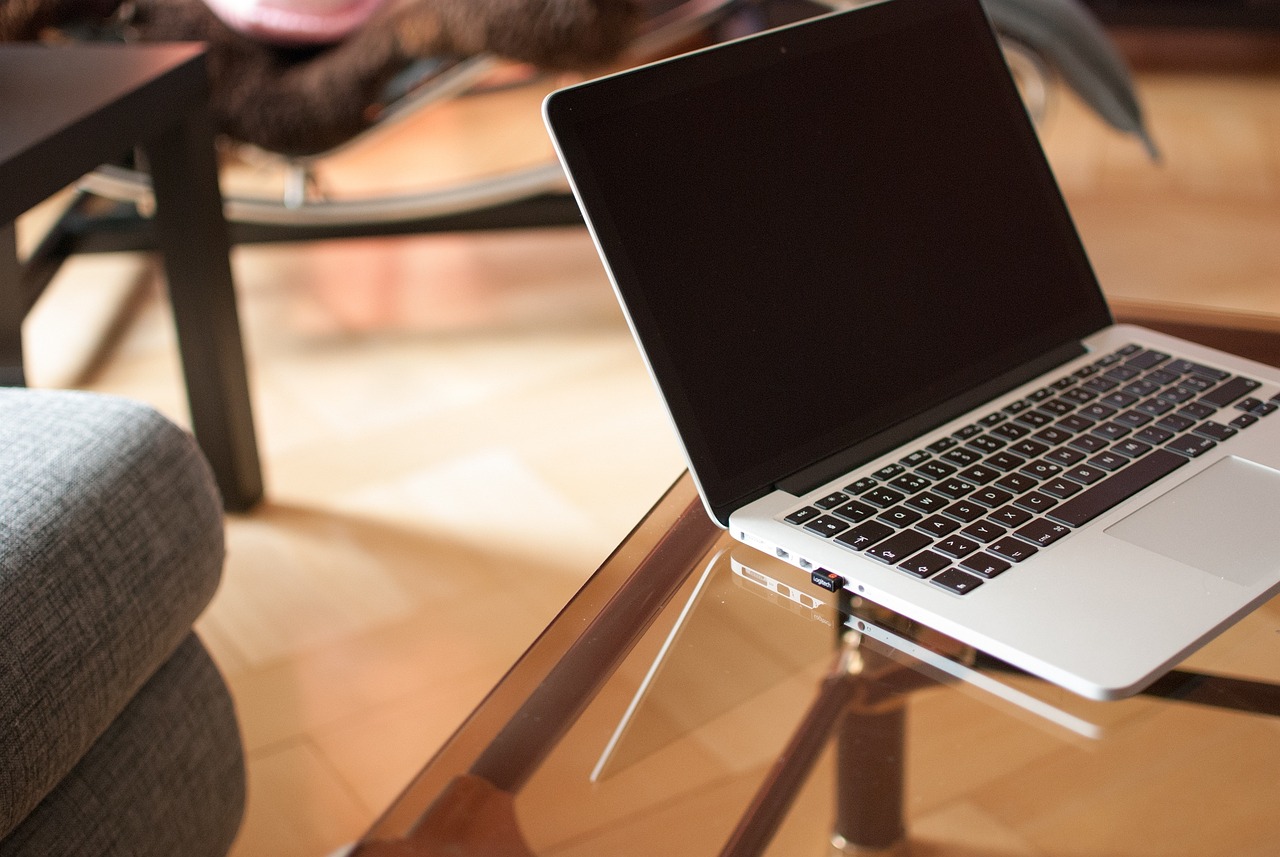
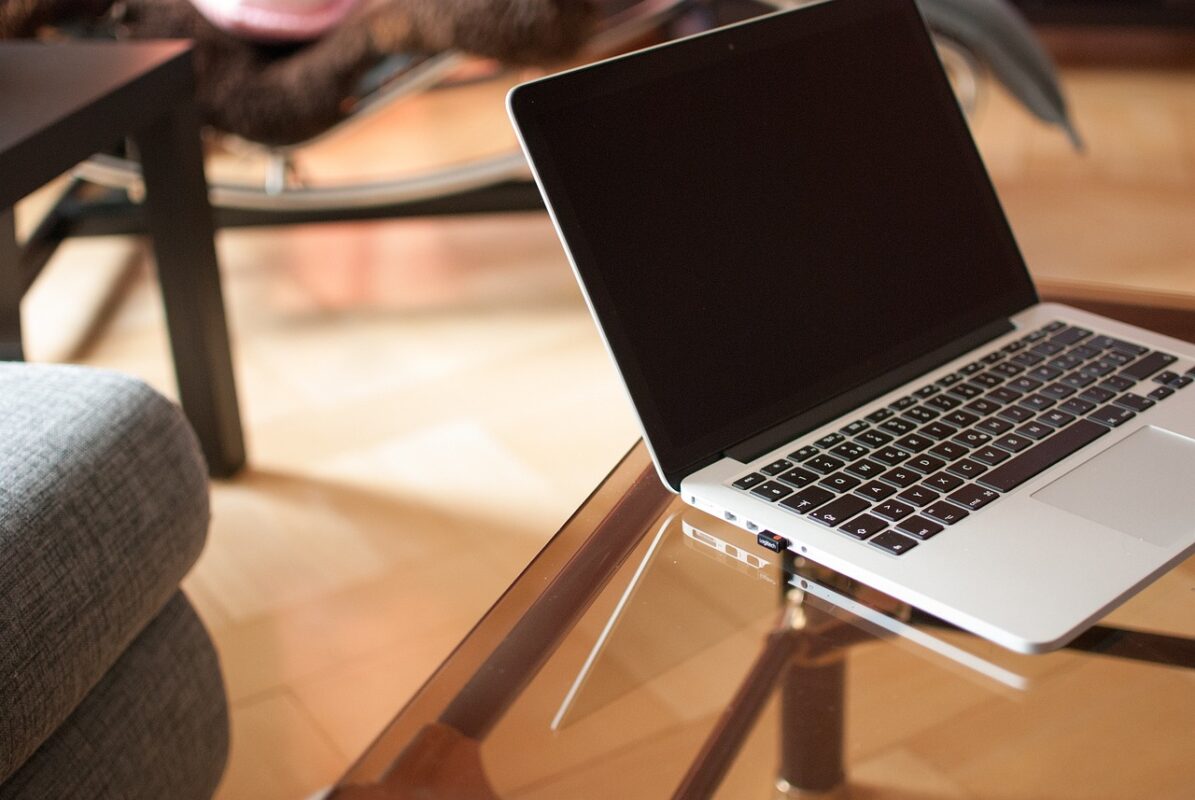
A laptop cannot be ergonomic on its own: the screen and keyboard are attached, so one of them is always in the wrong place. Raise the laptop on a stand so the screen is at the right height, and use an external keyboard and mouse.
For occasional use it hardly matters. For a full working day it matters a great deal, and a stand plus a keyboard is a small purchase against the alternative.
Lighting
Put the screen at right angles to a window rather than facing it or backing onto it. Facing a window means glare; backing onto one means the screen competes with a bright background and everything looks washed out.
A desk lamp should light the desk surface and not the screen.
A ten-minute setup
- Chair height: feet flat, thighs level.
- Forearms level with the keyboard.
- Top of screen at eye level.
- Screen an arm’s length away.
- Tilt back ten to twenty degrees.
- Screen at right angles to the window.
- Cables routed so nothing pulls the screen out of position.
Platform dimensions and load ratings are on every product in monitor stands and risers and laptop stands.
Bifocals and progressive lenses
The standard height advice assumes a single-vision prescription. Anyone wearing bifocals or progressives reads through the lower part of the lens, which means tipping the head back to see a screen at eye level — the opposite problem, and a well-known source of neck pain.
For those wearers the screen usually needs to be lower, not higher, and tilted back further. Dedicated computer glasses with the intermediate correction across the whole lens solve it properly, and are worth asking an optician about.
Standing desks
All of the same geometry applies standing, and the numbers change: the screen needs to be higher, and most monitor arms and risers have to be readjusted at each transition.
That readjustment is the reason many standing desks end up permanently at one height. A monitor arm with a gas spring, set once for each position, removes the friction — and if the screen stays at the sitting height while you stand, the setup is worse than not standing at all.